
The iPhone App Library has been around since iOS 14, so it is easy to assume there is not much left to talk about.
That is no longer the case.
Apple has not completely redesigned App Library, but recent iOS updates have changed the way it fits into everyday iPhone use. Features such as locked apps, hidden apps, more flexible Home Screen layouts, improved privacy controls, and the broader visual changes introduced with iOS 26 have made App Library more useful than the simple automatic folder screen many people remember.
Today, App Library works less like an extra page of apps and more like the underlying organization system behind a personalized iPhone Home Screen.
You can keep everyday apps visible, hide sensitive apps behind Face ID, remove rarely used apps from the Home Screen without uninstalling them, hide entire pages, and still access the rest of your installed apps when needed.
So, what has actually changed?
Let’s look at the recent App Library experience, what remains the same, and how you can use it more effectively in 2026.
What Is App Library on iPhone?
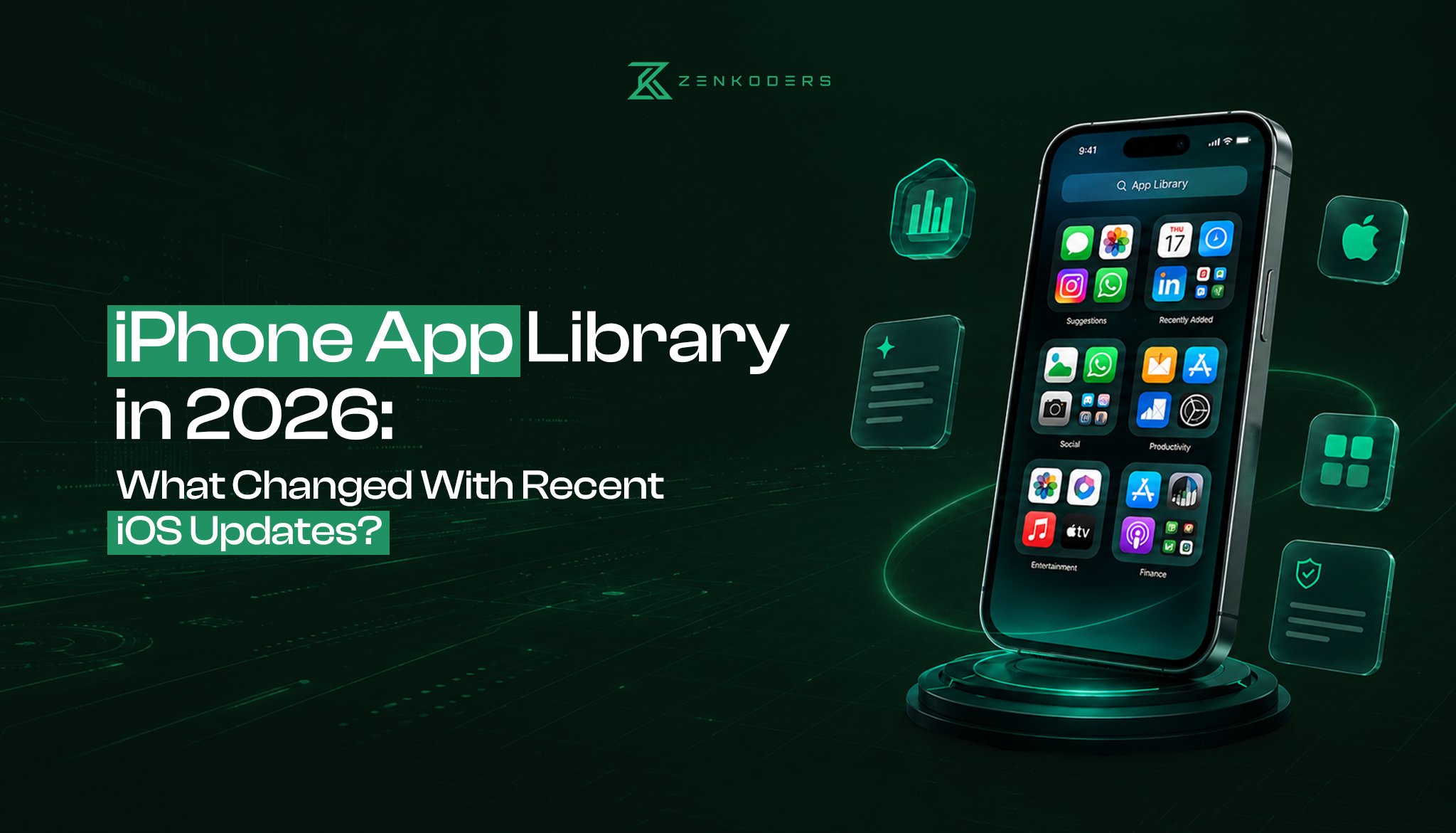
App Library is the automatically organized collection of apps that appears after your final iPhone Home Screen page.
To reach it:
- Unlock your iPhone.
- Go to the Home Screen.
- Swipe left through your Home Screen pages.
- Continue until you reach App Library.
Your installed apps are automatically grouped into categories such as Social, Entertainment, Utilities, Productivity & Finance, and other groups depending on what is installed.
Frequently used apps can appear more prominently, making them easier to open without expanding every category.
You can also tap the search field at the top of App Library to search for an app by name or browse your apps alphabetically.
What you still cannot do is manually redesign those App Library categories. Apple manages them automatically.
For businesses designing applications for Apple devices, details like app discovery, navigation, privacy, and platform behavior are important parts of the overall user experience. Zenkoders iOS app development services explain how iPhone applications are planned and built around Apple’s ecosystem and user expectations.
Apple’s updates keep changing how users discover, organize, and interact with apps. Make sure your product is built for today’s iOS experience not yesterday’s.
What Changed in App Library With Recent iOS Updates?
The underlying App Library concept has stayed relatively stable, but the surrounding iOS experience has changed significantly.
Here are the updates that matter most.
1. You Can Now Properly Hide Apps
One of the most meaningful changes arrived with iOS 18: users gained the ability to hide eligible downloaded apps.
This goes much further than the older Remove from Home Screen option.
Previously, removing an app from the Home Screen only removed its icon from that page. Anyone could still open App Library or use Search to find it.
A hidden app behaves differently.
When an eligible app is hidden, it moves into a dedicated Hidden folder at the bottom of App Library. Access to that folder requires authentication such as Face ID, Touch ID, or the device passcode.
That makes App Library part of the iPhone’s privacy experience rather than only an organizational tool.
This can be useful for apps containing private conversations, financial information, work accounts, personal records, or other information you would rather not have immediately visible when another person is using your device.
There is an important limitation: not every app can be hidden. Certain built-in Apple apps and some special system-related apps are excluded.
2. Locking and Hiding Apps Are Different
Recent versions of iOS also make an important distinction between locking an app and hiding it.
When you lock an app, it can remain visible but requires authentication before someone can open it.
When you hide an app, the app is protected and moved away from its normal Home Screen and App Library location into the Hidden folder.
This gives users three different levels of control.
Option | Visible on Home Screen? | Available in App Library? | Authentication Required? | Best For |
Remove from Home Screen | No | Yes | No | Reducing clutter |
Lock App | Usually yes | Yes | Yes | Protecting app access |
Hide App | No | Hidden folder | Yes | Privacy and discretion |
Delete App | No | No | No | Removing the app entirely |
This distinction is worth understanding because people often use “hide” and “remove” interchangeably even though they now produce very different results.
3. App Library Works Better With a Minimal Home Screen
Another change is less about App Library itself and more about how Apple now lets users organize their Home Screens.
You can hide complete Home Screen pages, move apps and widgets more freely, create different layouts, and decide whether new downloads should automatically appear on your Home Screen.
This means you no longer need to keep every installed app visible.
A practical setup might include:
- One page for everyday apps
- One page for work or productivity
- A few widgets
- App Library for everything else
You can also choose whether new apps appear on the Home Screen or go directly to App Library.
Go to:
Settings > Home Screen & App Library
Then choose between:
Add to Home Screen
or
App Library Only
For anyone who frequently downloads apps, selecting App Library Only can prevent Home Screen clutter from building up again.
This kind of platform-level usability is also important when developing mobile products. Zenkoders mobile app development services focus on designing applications that feel natural within the operating system rather than treating the app as an isolated experience.
4. iOS 26 Changes the Overall Home Screen Experience
With iOS 26, Apple introduced a broader visual redesign across the iPhone interface.
App Library’s fundamental purpose did not suddenly change: it still organizes installed apps into automatic categories.
However, the overall relationship between your customizable Home Screen and the automatically managed App Library has become clearer.
Your Home Screen is increasingly the space you personalize.
App Library is the space iOS manages for you.
That division can make organizing an iPhone considerably simpler.
Instead of spending time creating folders for every application, you can place the apps that genuinely matter on the Home Screen and rely on App Library for everything else.
5. Hidden Apps Changed How You Find “Missing” Apps
In the past, an app disappearing from the Home Screen usually had a simple explanation: it had been removed from the Home Screen but remained in App Library.
Now there are several possibilities.
An app might:
- Still be in its normal App Library category
- Be on a hidden Home Screen page
- Be inside the protected Hidden folder
- Have been deleted
- Have restrictions affecting its availability
This is particularly important because properly hidden apps do not behave exactly like apps that have simply been removed from the Home Screen.
If you cannot find an app that you are sure is installed, checking the Hidden folder in App Library should now be part of your troubleshooting process.
6. App Library Categories Are Still Automatic
Despite Apple’s expansion of Home Screen customization, App Library itself remains deliberately automatic.
You cannot create your own App Library category.
You also cannot drag an app from one automatically generated category into another.
For example, if iOS places an app under Productivity & Finance but you would rather classify it as Utilities, App Library does not give you that level of control.
If manual categorization matters to you, use Home Screen folders instead.
This is one reason App Library works best as a background organization system rather than a replacement for every Home Screen feature.
Understanding features like the App Library is only part of creating a great iPhone experience. The real challenge is building an app users want to keep.
App Library vs Home Screen Folders
Both features organize apps, but they solve different problems.
Feature | App Library | Home Screen Folders |
Organization | Automatic | Manual |
Categories | Selected by iOS | Created by you |
Custom names | No | Yes |
Reorder apps | Limited | Yes |
Search apps | Yes | Via broader iPhone Search |
Best use | Managing all installed apps | Organizing frequently used apps |
Maintenance | Very low | Requires manual organization |
If you enjoy controlling exactly where everything appears, folders are still useful.
If you simply want your apps organized without thinking about it, App Library wins.
A combination of both is often the best approach.
How to Find an App in App Library
Finding apps is straightforward.
Swipe left past your last Home Screen page to open App Library.
Then tap the search field at the top and start entering the app’s name.
You can also use the alphabetical list to browse everything installed on your device.
If you already know the exact app you need, using iPhone Search can be even faster than manually opening App Library.
Swipe down from around the middle of your Home Screen and type the app name.
This is particularly useful if you have dozens or hundreds of applications installed.
How to Move an App From App Library to the Home Screen
App Library does not prevent you from putting apps back on your Home Screen.
To move an app:
- Open App Library.
- Find the app.
- Touch and hold its icon.
- Drag it toward the Home Screen.
- Place it where you want it.
The app remains part of App Library even after appearing on your Home Screen.
Think of the Home Screen icon as convenient access rather than a separate copy of the app.
How to Remove an App Without Deleting It
This remains one of App Library’s most useful features.
If you do not want an app occupying Home Screen space but still want it installed:
- Touch and hold the app icon.
- Tap Remove App.
- Select Remove from Home Screen.
The app disappears from your Home Screen but remains available through App Library.
Do not select Delete App unless you genuinely want to uninstall it.
The difference sounds simple, but it is one of the most common sources of confusion when organizing iPhones.
Pros and Cons of Using App Library
App Library is useful, but it is not perfect.
Pros of App Library
Less Home Screen clutter
You can install dozens of applications without needing dozens of visible icons.
Automatic organization
There is no need to manually put every new app into a folder.
Fast app search
Searching App Library is often quicker than browsing multiple Home Screen pages.
Better privacy options
The Hidden folder gives recent iOS versions a much stronger approach to protecting certain applications.
Flexible download settings
New applications can go directly to App Library instead of filling your Home Screen.
Works well with minimal layouts
Users who prefer one or two clean Home Screen pages can keep everything else out of sight.
Cons of App Library
You cannot customize categories
Apple decides where applications belong.
Some category choices may feel unintuitive
An app may not always appear in the category where you would personally place it.
Hidden apps can create confusion
Someone who does not know about the Hidden folder may think an application was deleted.
It can require additional swipes
If you use many Home Screen pages, reaching App Library takes longer.
Power users may prefer Search
Once you are comfortable using Spotlight-style Search, opening App Library manually may sometimes feel unnecessary.
App Library vs Search: Which Should You Use?
There is no need to choose one permanently.
Use App Library when you want to browse installed apps or explore categories.
Use Search when you already know exactly which app you want.
Use Home Screen folders when you want manual organization.
Use the Hidden folder when privacy is the priority.
That combination is more useful than trying to make one iPhone feature handle every situation.
A Better Way to Organize Your iPhone in 2026
If your Home Screen currently has five, six, or even ten pages, App Library gives you an opportunity to simplify things.
Start by asking one question:
Which apps do I actually need to see every day?
Keep those on your first Home Screen.
Then consider creating a second page for apps related to work, travel, finance, or entertainment.
Remove occasional-use apps from the Home Screen without deleting them.
Hide Home Screen pages you no longer need.
Set new downloads to App Library Only if you regularly install new apps.
Finally, use the Hidden folder only for apps you genuinely want protected rather than treating it as another organization folder.
The result should be an iPhone that feels easier to navigate, not merely one that looks cleaner.
Why These Changes Matter for App Developers Too
App Library may seem like a consumer-facing iPhone feature, but it also highlights something important about app development: applications do not exist in isolation.
Users interact with apps through the Home Screen, App Library, Search, notifications, privacy controls, widgets, Siri, and other parts of iOS.
A good application therefore needs to fit naturally into Apple’s wider ecosystem.
For products that depend heavily on performance, security, and Apple-specific device functionality, native app development services can provide deeper platform integration.
And when an iOS application is ready to move from development to release, Zenkoders’ guide on how to upload an app to the iOS App Store explains the practical submission process, including App Store Connect, testing, and Apple’s review workflow.
Final Thoughts
App Library has not been completely reinvented, but its role on the iPhone has definitely evolved.
What started as Apple’s answer to overcrowded Home Screens now sits at the center of a broader system involving app discovery, Home Screen customization, privacy, hidden applications, and everyday organization.
The biggest recent change is privacy.
Being able to lock or hide eligible apps behind authentication makes App Library more useful than it was when the feature originally launched.
At the same time, Apple’s continued Home Screen customization means you no longer need every installed application competing for attention.
Keep the apps you use every day where they are easy to reach. Let App Library handle applications you use occasionally. Use Search when speed matters, and reserve the Hidden folder for apps that genuinely require additional privacy.
Used that way, App Library becomes something you barely need to manage which is exactly what a good organization system should do.
FAQs:
What is the App Library on iPhone?
App Library is the automatically organized screen that contains your installed iPhone apps. Swipe left past your final Home Screen page to access it.
Did Apple remove App Library in recent iOS updates?
No. App Library remains part of current iOS versions. Apple has expanded other features around it, including Home Screen customization and app privacy controls.
What changed with App Library in recent iOS updates?
The biggest practical change is the introduction of locked and hidden apps. Eligible hidden apps can now be placed inside a protected Hidden folder within App Library and accessed using Face ID, Touch ID, or a passcode.
Can I customize App Library categories?
No. iOS automatically organizes App Library categories. You cannot manually rename categories or move an app into another App Library category.
Can I hide an app from App Library?
Eligible downloaded apps can be hidden using the newer app-hiding feature. Hidden apps are moved into the protected Hidden folder rather than appearing in their normal App Library category.
Where is the Hidden folder on iPhone?
Swipe left past your Home Screen pages to reach App Library and look near the bottom for the Hidden folder. Authentication is required to view its contents.
Why can't I find an app in App Library?
The app may be hidden, deleted, or affected by restrictions. Check the Hidden folder, iPhone Search, your Home Screen pages, and the App Store if necessary.
Does removing an app from the Home Screen delete it?
No. Selecting Remove from Home Screen keeps the application installed and accessible through App Library. Delete App removes it from your iPhone.
Can new apps go directly to App Library?
Yes. Go to Settings > Home Screen & App Library and select App Library Only for newly downloaded applications.
Is App Library better than Home Screen folders?
Neither is universally better. App Library is best for automatic organization, while Home Screen folders are better when you want complete control over how apps are grouped.